Why Your Android Phone Says It's Infected (When It Probably Isn't)
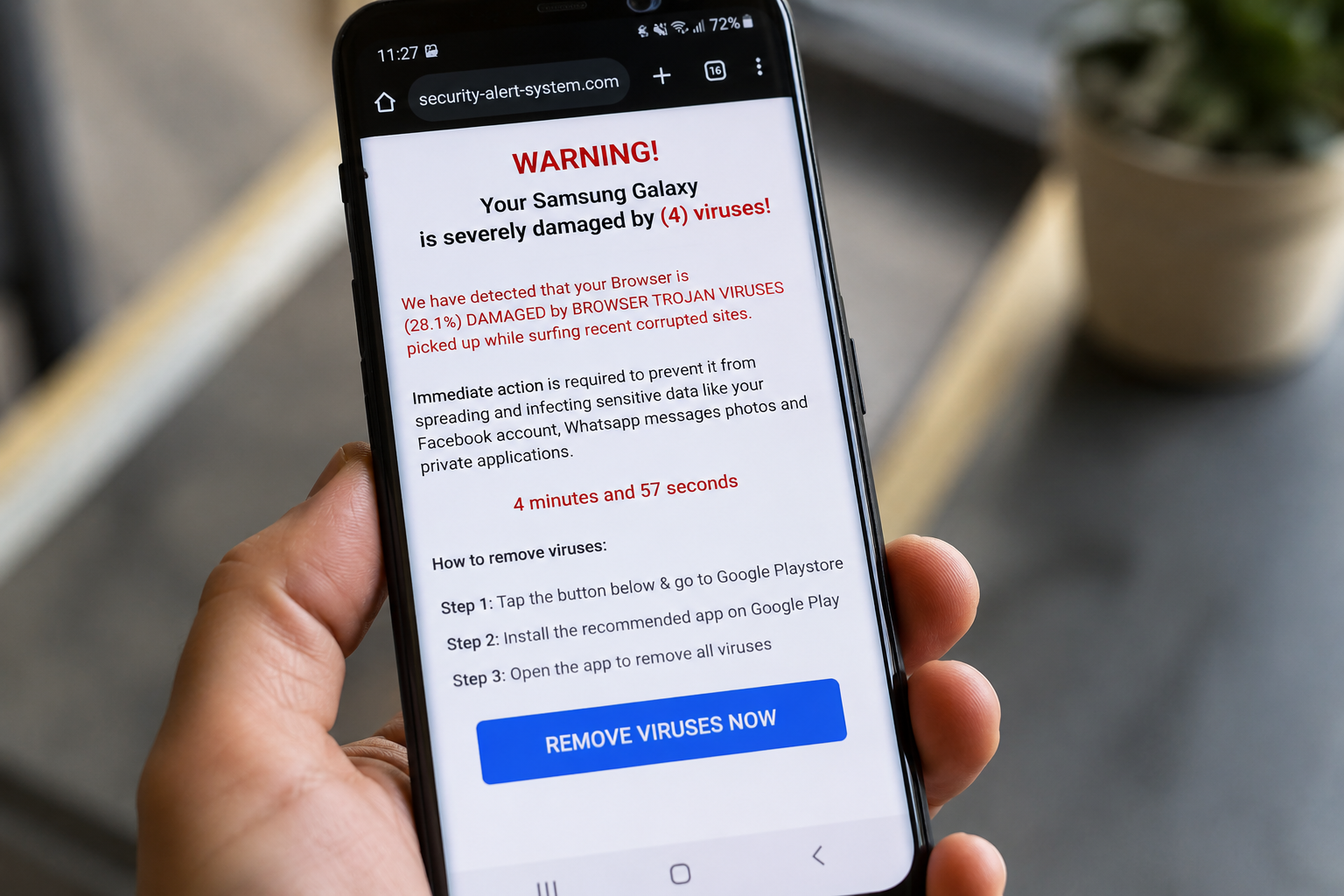
If you've ever been browsing the internet on your Android phone—especially a Samsung device—and suddenly had a message appear saying:
"Your phone has been infected with 7 viruses!"
"Your device is seriously damaged!"
"Download this cleaner immediately!"
don't panic.
In almost every case, your phone is perfectly fine.
What's Actually Happening?
These alarming messages aren't coming from Samsung or Google. They're simply web pages designed to scare you into clicking a button or installing an app.
Many websites use advertising networks, and occasionally a malicious advertisement or compromised webpage can display a fake security warning. The message might even vibrate your phone, play a sound, or repeatedly pop up to make it seem genuine.
The goal is simple: convince you to install a fake cleaning app, sign up for an unnecessary subscription, or hand over your credit card details.
Why Does It Keep Coming Back?
One of the most common reasons is that the offending webpage is still open in one of your browser tabs.
Many people don't realise they have dozens—or even hundreds—of tabs open in their browser. Every time the browser reopens, that same scam page can reload and display the warning again.
How to Close Your Tabs in Samsung Internet
Open Samsung Internet.
Tap the Tabs button at the bottom of the screen (it looks like a square with a number inside).
You'll see all of your open webpages.
Close the suspicious tab by tapping the X, or tap Close All if you don't need to keep any of them.
How to Close Tabs in Google Chrome
Open Google Chrome.
Tap the tab counter at the top or bottom of the screen (the number showing how many tabs are open).
Swipe away or tap the X on suspicious pages.
If you've accumulated lots of tabs, choose Close All Tabs from the menu.
Have You Already Installed the App?
If you clicked the warning and installed the recommended "cleaner", "security", or "virus removal" app, you should uninstall it as soon as possible unless you are absolutely certain it came from a trusted developer.
Many of these apps provide little or no benefit, bombard you with advertisements, pressure you into expensive subscriptions, or constantly claim they've found problems that only their paid version can fix.
To remove an app:
Open Settings on your phone.
Tap Apps.
Find the suspicious app.
Tap Uninstall.
If you can't remember the app's name or you're unsure whether it's legitimate, don't guess—seek advice before entering any payment details or granting further permissions.
Should You Install a Cleaner App?
Generally, no.
Android already includes built-in tools to manage storage and optimise performance. Samsung phones also have Device Care, which can help manage storage, memory and battery health.
Most people don't need a third-party cleaning app, and many exist primarily to generate advertising revenue or encourage ongoing subscriptions.
What Should You Do If You See One of These Messages?
Don't tap the warning.
Don't install the suggested app.
Close the browser tab.
Remove any suspicious apps you may have already installed.
Clear your browser tabs if necessary.
If you're unsure, restart your browser and reopen it after closing the offending pages.
If the warning disappears once you've closed the webpage, your phone wasn't infected—it was simply displaying a scam page.
Still Not Sure?
If your phone continues displaying pop-ups, you're concerned you've installed something you shouldn't have, or you'd simply like peace of mind, book an appointment and have your smartphone professionally checked.
A quick inspection can identify unwanted apps, remove any suspicious software, check your browser settings, and ensure your phone is operating safely—without paying for unnecessary "cleaner" apps or subscriptions.
The Bottom Line
Fake virus warnings are one of the oldest tricks on the internet, and they're still catching people out every day.
Remember: websites don't know whether your phone has a virus. Their goal is to frighten you into clicking.
Don't let a fake warning convince you to spend money on software you don't need. If in doubt, close the webpage, remove any suspicious apps, and get independent advice by contacting me before handing over your money.