How to Check Where Your Google, Microsoft and Facebook Accounts Are Logged In
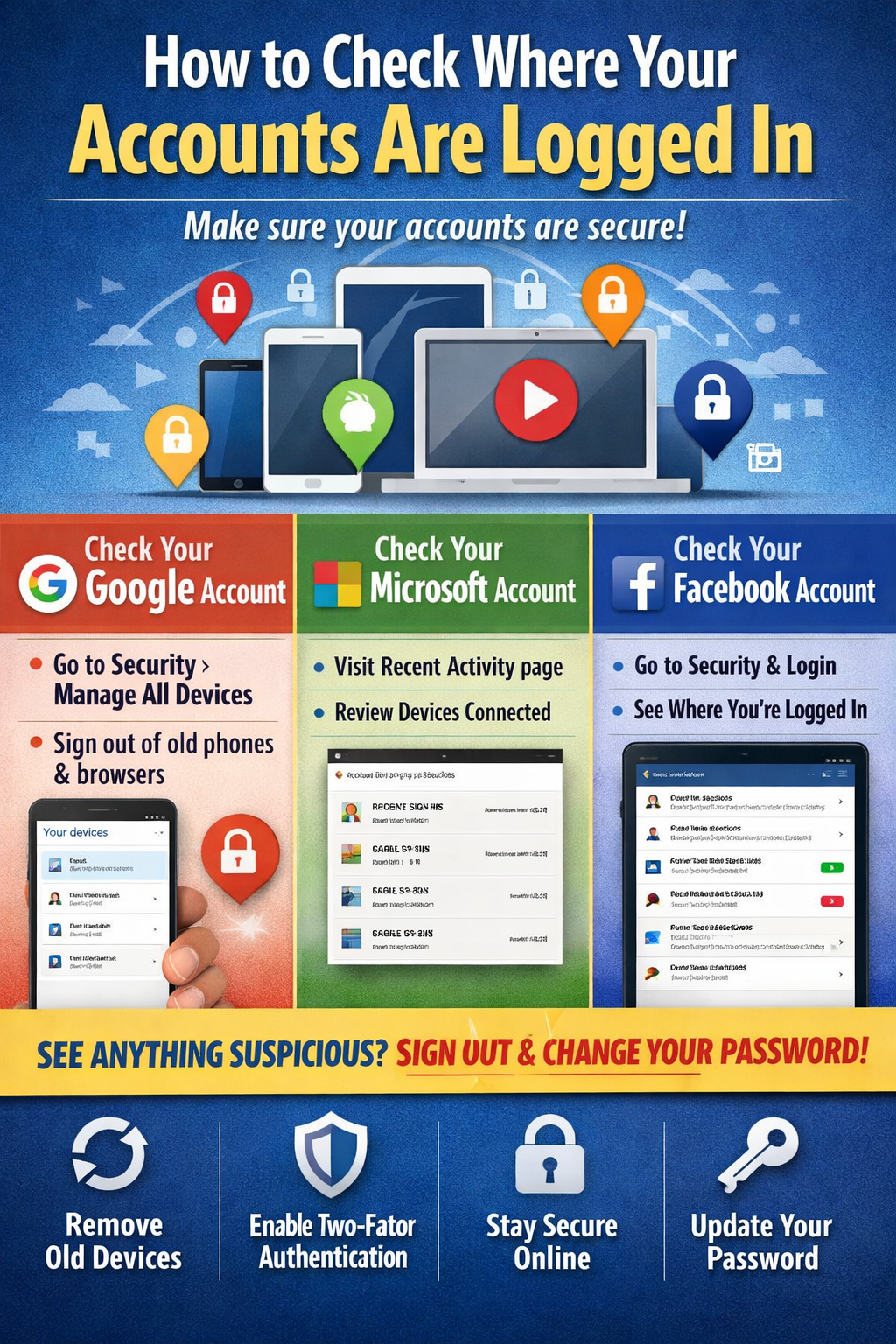
Most people stay signed in on phones, tablets, laptops, browsers and apps for years without thinking about it. That is fine right up until you lose a device, replace a computer, sell a phone, or realise somebody else may still have access.
A smart habit is to check every so often where your accounts are signed in and remove anything you do not recognise.
Why this matters
Checking your active logins can help you:
spot an old phone, tablet or computer you no longer use
see if a browser session is still open somewhere
detect suspicious access
quickly sign out of devices you do not trust anymore
If you see anything unfamiliar, change your password and turn on two-factor authentication straight away.
How to check your Google account logins
Google lets you see devices where your account is currently signed in, or has been used in the last few weeks. From your Google Account, go to Security, then look for Your devices and choose Manage all devices. There you can review each device or session and sign out of anything that is not yours.
What to look for on Google
Check for:
old Android phones
previous laptops
tablets you sold or gave away
browsers on computers you no longer use
If something looks wrong, Google recommends reviewing the device and securing your account from the same Security section.
How to check your Microsoft account logins
For Microsoft accounts, there are two places worth checking.
First, the Recent activity page shows where your Microsoft account has been used in the last 30 days, including location details and how the sign-in happened, such as browser or phone access.
Second, the Devices page at Microsoft shows devices connected to your account. Windows 10 and 11 devices signed in with your Microsoft account can appear there, and you can remove devices you no longer use.
What to do if you see something suspicious on Microsoft
Microsoft also has an option to sign out of your account everywhere. It says this sign-out can take effect within 24 hours across browsers, apps and other places your account is used, with some exceptions such as Xbox.
How to check where Facebook is logged in
Facebook puts this under Security and Login settings. In the Where you’re logged in section, you can see where your Facebook account is currently active and log out of sessions you do not recognise.
Facebook also notes that unfamiliar locations are not always proof somebody has hacked your account. Mobile networks, VPNs, and estimated locations can make the login appear to come from somewhere nearby rather than your exact spot.
While you are there
It is also worth checking Apps and Websites in Facebook settings to review third-party apps and services linked to your account.
Best practice after checking your logins
Once you have reviewed Google, Microsoft and Facebook, do this:
sign out of devices you no longer own
remove old or unused devices
change your password if anything looks off
enable two-factor authentication
avoid reusing the same password across multiple services
Final word
This is one of those boring little security jobs that can save you a heap of grief later. It only takes a few minutes, and it gives you a much clearer picture of where your digital life is still hanging around.
If you have upgraded devices, sold old gear, or logged in on a shared computer, now is the time to check.
If you require assistance with this please CONTACT ME