Why Won’t My Printer Print? The 5 Most Common Culprits (and What You Can Do)
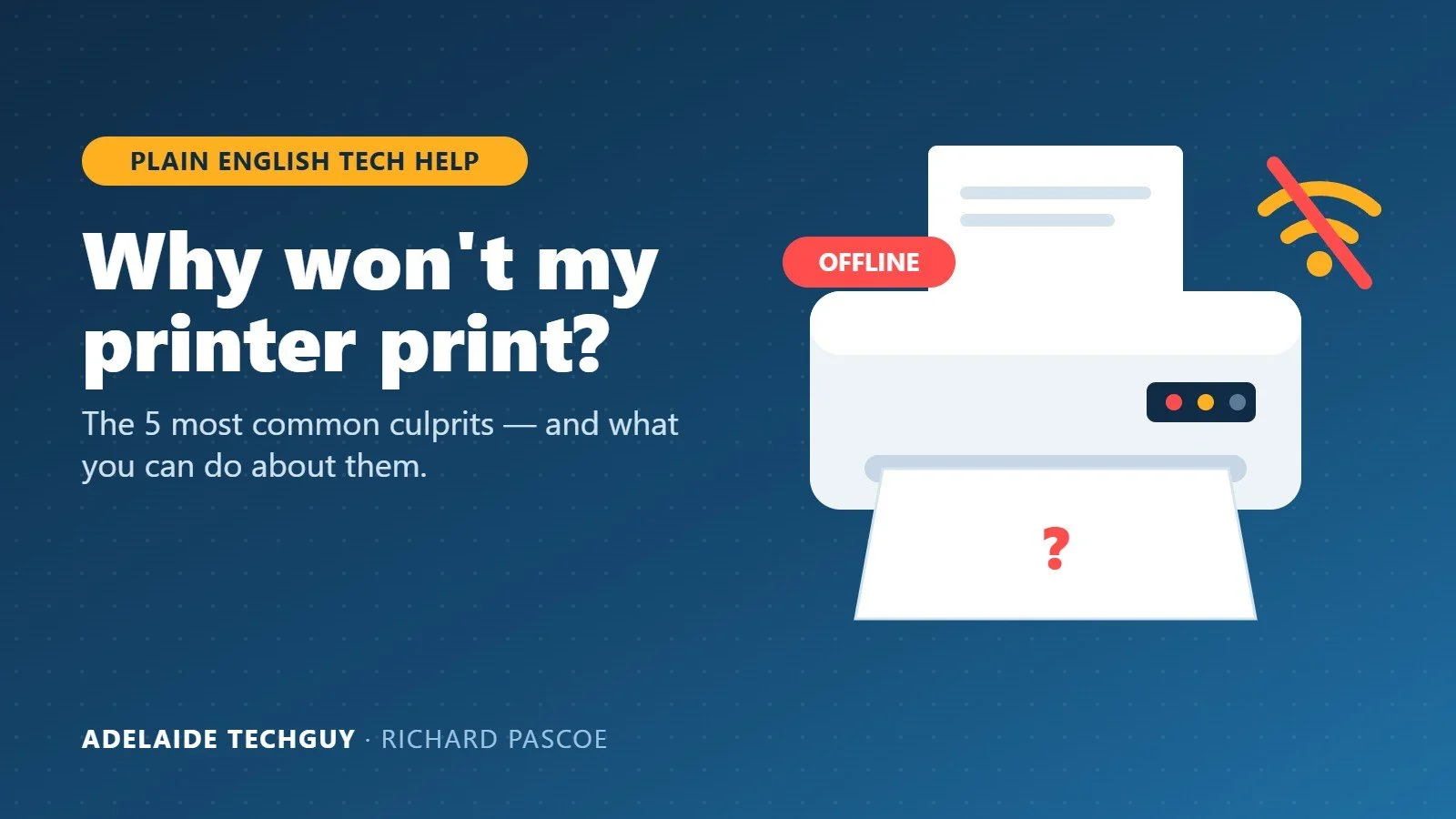
Of all the gadgets in our homes, few cause as much frustration as the humble printer. It worked perfectly last week. You haven’t touched it. And now, just as you need to print a boarding pass or a form for school, it says “Offline” — or worse, says nothing at all.
The good news? Printer problems almost always fall into one of five areas. Once you know where to look, you can fix a lot of them yourself.
1. The Wi-Fi connection
Most printer problems I see in Adelaide homes are actually Wi-Fi problems in disguise.
Your printer may not “speak” your new Wi-Fi. Many cheaper and older printers can only connect to the older 2.4 GHz Wi-Fi band. Newer routers and mesh systems often blend 2.4 GHz and 5 GHz into a single network name, and some printers get confused and keep dropping off.
The printer’s “address” changed. Every device on your home network gets a number, a bit like a house number. When your modem restarts, the printer can be given a new number — but your computer is still knocking on the old door. The result: print jobs that just sit there.
Guest networks keep devices apart. If your printer is on the guest Wi-Fi and your computer is on the main Wi-Fi (or vice versa), they often can’t see each other at all, even though both have internet.
Newer security settings. Modern routers offer a newer security standard called WPA3. Older printers simply can’t understand it, so they fail to connect without telling you why.
What you can try:
Turn the printer off, then the modem, then turn the modem back on, wait a couple of minutes, and turn the printer back on.
Make sure the printer and your computer are on the same Wi-Fi network — not the guest network.
If you’ve recently changed your modem or installed mesh Wi-Fi, the printer may need to be set up again from scratch.
Ask your tech person to give the printer a “fixed” address on your network so it never moves house again.
2. Computer updates and “drivers”
A driver is the small piece of software that teaches your computer how to talk to your printer. When Windows or your Mac updates itself, that conversation can break.
An update can quietly swap your printer’s proper software for a basic, generic version. Printing might still work, but features like double-sided printing or choosing a paper tray disappear.
Older printer software sometimes simply stops working after a big Windows or macOS upgrade.
If you’ve bought a newer laptop with a different type of processor (some new Windows laptops and Apple’s M-series Macs), your printer maker may never have made software for it.
What you can try:
Remove the printer from your computer’s settings and add it again.
Download the latest software directly from the printer manufacturer’s website (HP, Canon, Epson, Brother etc.) — not from a random download site.
On a Mac, check whether your printer supports AirPrint. If it does, you often don’t need any extra software at all.
3. A stuck print queue
Sometimes one bad print job — a large or damaged PDF, for example — gets jammed in the computer’s print queue. Everything sent after it lines up behind it and nothing comes out.
Windows can also be a bit too clever for its own good. It regularly “checks in” with the printer, and if that check-in fails, it marks the printer as Offline — even when the printer is perfectly fine and on the network. And printers that Windows found automatically can sometimes fall asleep and not wake up properly.
What you can try:
Open your printer queue and cancel all the documents waiting there.
Restart your computer and the printer.
If it keeps showing “Offline”, it’s worth getting the printer set up the “proper” way (connected by its network address rather than automatic discovery). This is a five-minute job for a technician and often fixes the problem for good.
4. Ink, subscriptions and security locks
This is the one that annoys people the most — and understandably so.
Cheaper, third-party ink cartridges suddenly stop working. Printers quietly download updates over Wi-Fi, and some of those updates are designed to reject non-brand cartridges.
Ink subscription services (such as HP Instant Ink or HP+) can switch off your cartridges if the printer loses its internet connection for too long, or if the credit card on the account expires.
Scan-to-folder stops working. On some older office printers, scanning straight to a computer folder relies on an old, insecure method that Windows has now switched off for safety reasons.
Office printers with built-in security certificates can have those certificates expire after five or ten years, and computers then refuse to talk to them.
What you can try:
If you’re on an ink subscription, log in to your account and check your payment details are current.
Make sure the printer is still connected to the internet.
If you use third-party ink, be aware that a printer update can stop it working. Before you buy a new printer, ask about this — I’m always happy to give advice before you buy.
5. Plain old wear and tear
Sometimes it isn’t the technology at all — it’s the moving parts.
“Paper jam” but there’s no paper stuck? Tiny sensors inside the printer get coated in paper dust and think there’s a jam when there isn’t.
Paper won’t feed in. The rubber rollers that grab the paper get smooth and shiny over time and lose their grip.
Blank pages, even though the ink says it’s full. If an inkjet printer isn’t used for a while, the tiny nozzles dry out and block up.
Laser printer error codes. The part that heats up to “bake” the toner onto the page (called the fuser) can wear out and trigger an error.
What you can try:
Run the printer’s built-in head cleaning or nozzle check from its menu or software.
Print at least one page a week on an inkjet printer to keep the ink flowing.
Gently wipe the paper rollers with a lint-free cloth slightly dampened with water.
For laser printer error codes, check the manual or manufacturer’s website — some parts can be replaced, but on cheaper printers it’s often more cost-effective to replace the printer.
The bottom line
Before you throw the printer out the window (we’ve all been tempted), work through the basics:
Turn everything off and on again — printer, modem and computer.
Check the printer and computer are on the same Wi-Fi network.
Clear out the print queue.
Check your ink and any subscription.
Run a cleaning cycle.
If you’ve tried all that and it still won’t cooperate, that’s where I come in. I can usually work out which of these five areas is causing the trouble and get you printing again — and explain what went wrong in plain English.
Need a hand? Book an appointment — I service Adelaide homes and businesses from Aldinga to Gawler.
— Richard Pascoe, The Adelaide Techguy