Turn an Old iPhone Into a Kids’ Dumb Phone With This Hidden Feature
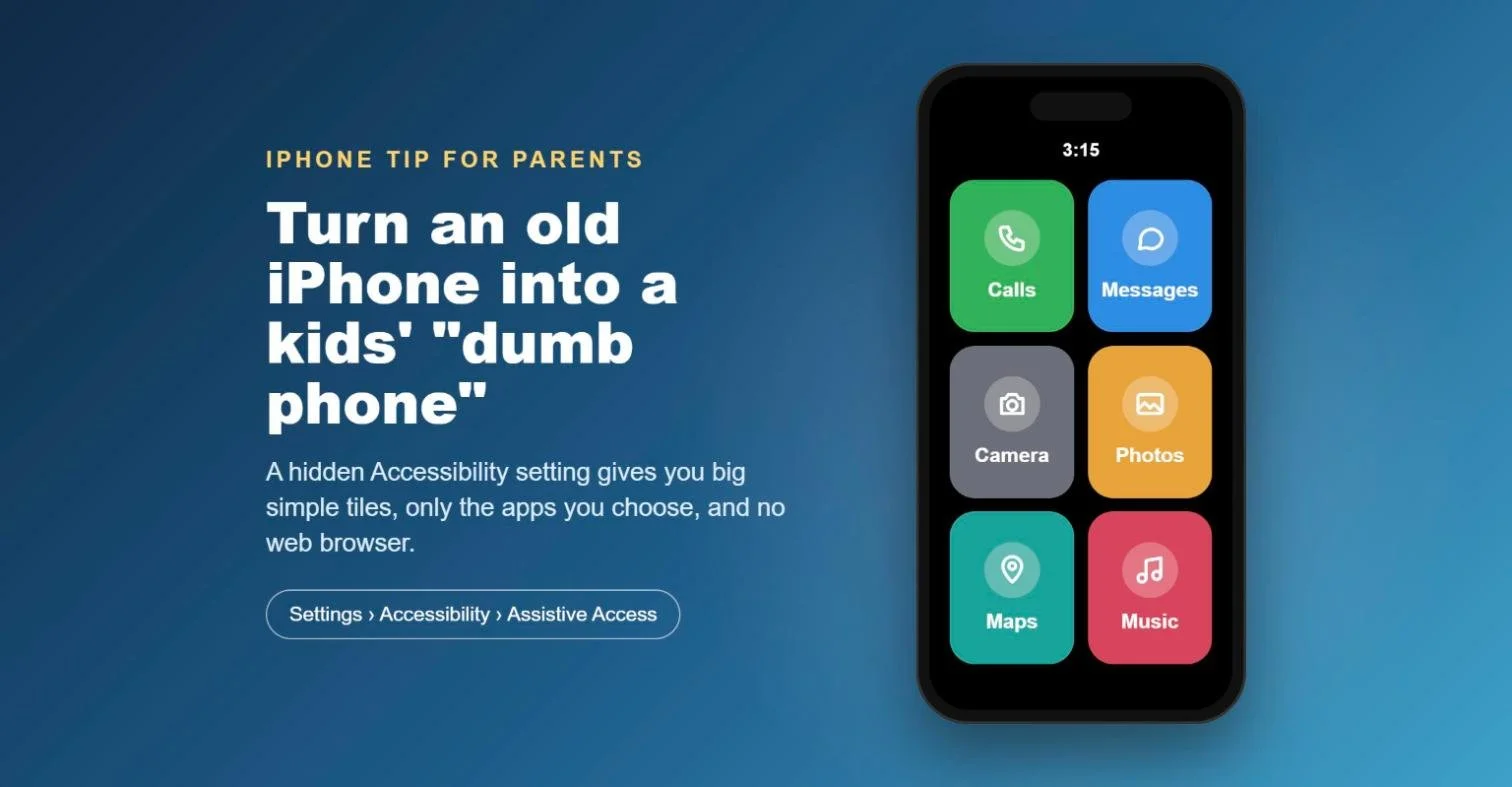
A lot of parents ask me the same question: how do I give my child a phone so I can call them and see where they are, without handing them the whole internet? There are plenty of "kids' phones" and paid apps out there, but there's a free option already built into every modern iPhone. It's called Assistive Access, and it's tucked away in the Accessibility settings where most people never look.
What is Assistive Access?
Apple introduced Assistive Access with iOS 17. It was designed for people with cognitive disabilities, so it strips the iPhone back to a very simple screen with large, easy-to-tap tiles and only the apps you choose. Those same things make it a great setup for children. If you have an old iPhone sitting in a drawer, this is a good way to give it a second life as a simple "dumb phone" for the kids.
How to set it up
Open Settings and tap Accessibility.
Scroll down to the General section and tap Assistive Access.
Tap Set Up Assistive Access, then Continue.
Choose your layout. I recommend Grid, as this gives you the big tiles.
Choose the allowed apps by tapping the green + next to each one you want your child to have.
For apps like Calls and Messages, choose who your child can contact or be contacted by: everyone, contacts only, or selected favourites.
Set a four-digit Assistive Access passcode. Keep this to yourself, as it's what lets you switch back to the normal iPhone.
You can also fine-tune things as you go. You can choose whether the keypad and speaker are available in Calls, show the time on the lock screen, stop the mute switch from working, and decide how notifications appear. The Music app will only play the playlists you've approved.
No web browser, and links don't work
This is the big one for parents. If you don't add Safari, Chrome or any other browser, there is simply no way to get on the web. Even better, if someone texts your child a link, it shows up as plain text and can't be tapped. Assistive Access is designed to stop the user wandering out of the simple screen, so web browsing is heavily restricted and switched off by default. Your child also can't get into the normal iOS Settings.
Getting in and out
To leave Assistive Access, triple-click the side button (or the Home button on older iPhones with Touch ID) and enter your passcode. This switches the phone back to the normal iPhone screen. To change which apps are allowed later, just go back into the Assistive Access settings, so the phone can grow with your child.
A simple starting setup
For a younger child, I'd suggest starting with just a handful of apps:
Calls and Messages, limited to family and trusted contacts
Maps
Camera and Photos (you can even turn off the selfie camera if you want)
Music, with playlists you've picked
Because it's still an iPhone, you also keep Find My for location tracking, plus FaceTime if you add it, all with no monthly fee for a separate kids' phone service.
The downsides
It's not perfect, and it's worth knowing the limitations before you hand it over:
Assistive Access can feel a bit sluggish compared to the normal iPhone.
Voicemail doesn't work in Assistive Access, so if your child misses a call you'll need to send a text.
You can't turn the iPhone off while in Assistive Access. You need to switch back to normal mode first.
Apps can occasionally freeze. There have been reports of Messages locking up when scrolling through lots of emojis, so make sure you know how to exit and restart it.
When it first came out, Assistive Access ignored Screen Time limits. Since iOS 26 it now works with the Screen Time limits you've set, so make sure the phone is up to date.
What about the new Screen Time in iOS 27?
The redesigned Screen Time in iOS 27 has picked up some of the best ideas from Assistive Access, including, for the first time, the ability to remove Safari when setting up a child's profile. If your child is older and needs a more normal iPhone, that may be the better path. For younger kids getting their first phone, though, Assistive Access is hard to beat for something that's free and already on the phone.
If you'd like a hand setting up a phone for your child, get in touch and I can walk you through it.